How to set up an AI bot that reads the school email for you
Image credit: author, drawn with code
This is a step-by-step guide to setting up your first AI agent that runs on its own every day. The example is the bot that reads our kids’ school email, which I wrote about in my post on the school email bot. It reads the school mail and messages, and every afternoon it sends my wife Mimi and me one short email with what we need to do. You don’t need to write any code. If you can paste a long block of text and click through some account settings, you can do this.
The same steps work for any inbox you can’t keep up with, e.g. a sports league, a homeowners’ association or a volunteer group. School email is just the example I know best.
Setting up our bot took about an hour. Getting it to where it was mostly right took about a week of checking its work. Then, over the next several weeks, reading the digests turned up edge cases that only show up over time, and each one became a new rule. That’s a realistic budget, and the week of checking matters most, because that’s where the bot becomes something you can trust.
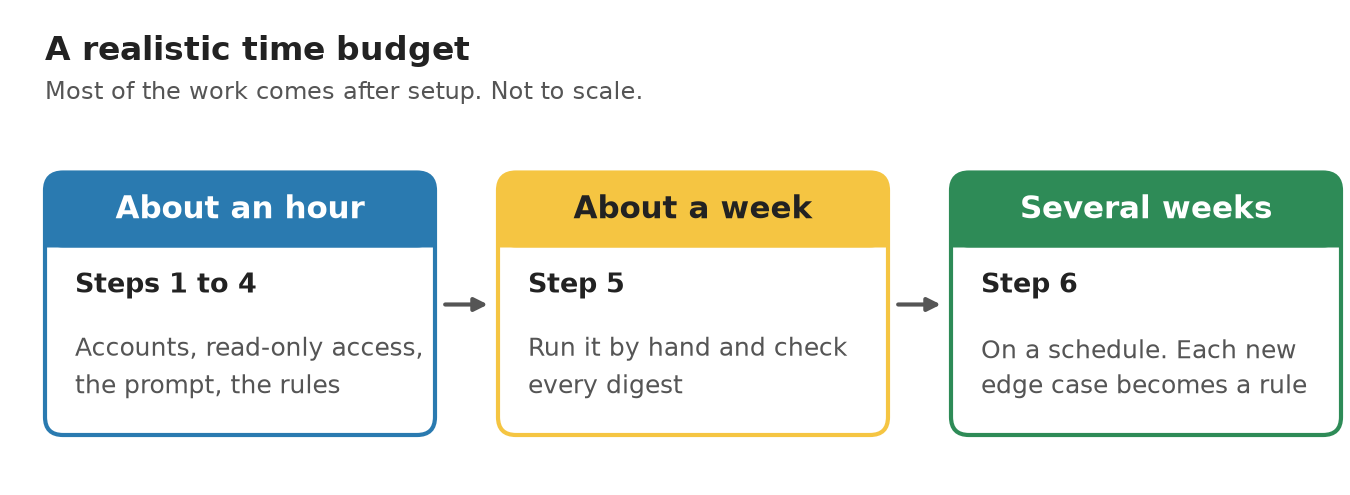
Where the time goes. Not to scale.
The Short Version
- Make a new Gmail account for the bot, and a Google Group with you and your partner on it.
- Create a bot in an AI agent service. Connect your Gmail and calendar read-only, and the bot’s Gmail for sending.
- Paste the daily prompt from the template and fill in the blanks.
- Run it by hand once a day for a week. Check each digest against the original emails, and add a rule for every mistake.
- Ask the bot to put it on a schedule: every day at about 4 PM, plus a look-ahead on Saturday evenings.
The rest of this post explains why each step matters.
What Will You End Up With?
Every afternoon, the bot reads the new school email and any school app you use, follows the links to the full newsletters, and writes one digest. The must-dos come first, every event has a time (or says “time not listed”), and anything that isn’t already on your calendar gets an “Add to calendar” link that takes one click. On Saturday evenings, a second email looks ahead at the next two to three weeks.
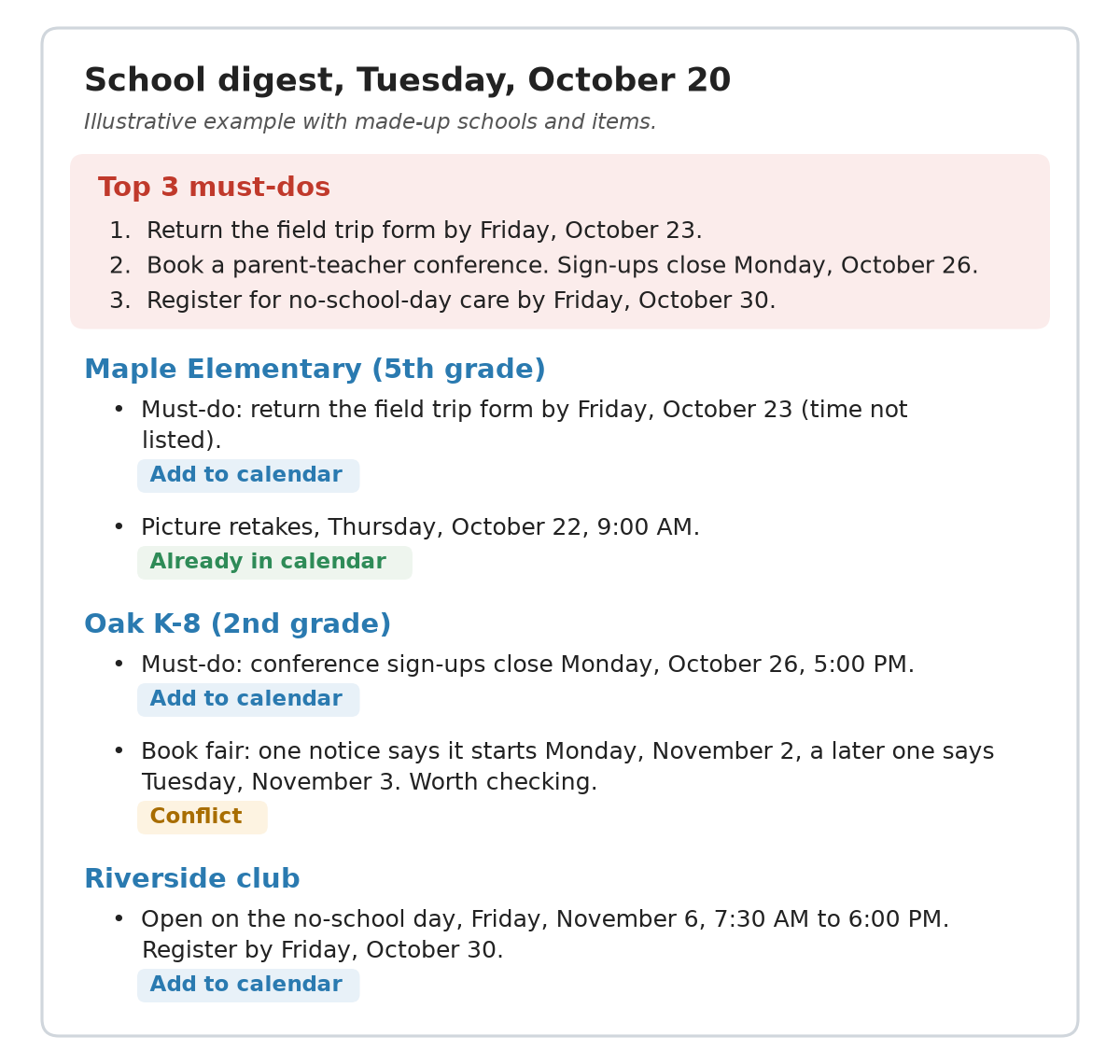
An illustrative digest with made-up schools and items, to show the format.
In our house, that replaced 30-plus school emails a week and a separate school app. That being said, it doesn’t make the information go away. Mimi is often overwhelmed by how much the schools send, and she reads the digests when she has the headspace for it. Even the digests can feel like a lot. So, keep your digest short, and put the few things that really need doing at the very top. The template asks for the three most important must-dos in a short list before anything else.
What Do You Need?
- An AI agent service that can run on a schedule, read your email and calendar, and use a web browser. I use Grok Bot, which comes with my $20 a month Cursor Pro subscription, and that plan includes a generous allowance for Grok Bot right now. Pro is no longer on Cursor’s pricing page, though, and for new subscribers the cheapest plan that includes Grok Bot is Premium, at $30 a month. Meta’s Muse has paid plans at $20 and $100 a month, but it’s still in limited testing and isn’t available everywhere. OpenAI’s dots come with ChatGPT Pro, which starts at $100 a month. These are the prices as of November 17, 2026. They change often, so check them before you sign up.
- A new email account, just for the bot. It’s the only account the bot is allowed to send from.
- A shared mailing list, e.g. a Google Group, with you and your partner on it. The bot sends only to that list.
- Your calendars, shared with each other, so that whatever one of you adds, the other can see.
- The prompt, i.e. the written instructions the bot follows on every run. I’ve put a template you can copy in my memex-template repo.
Step 1: Why Does the Bot Need Its Own Email Account?
The bot needs to read your email, and it needs to send the digest. If it sent from your account, one bad run could email a teacher in your name. So, give it its own account, and only let it send from that one. Create a new Gmail account, e.g. with your family name and “school-bot” in it, and turn on 2-step verification.
Then create the shared list. In Google Groups, create a group and add yourself and your partner. It works as one shared email address that forwards every email to both of you. Ours lets anyone post to it, which is the simplest setting, since the bot’s new address can send to it without any extra steps. Send a test email from the bot’s account and check that both of you get it.
Step 2: How Do You Connect It to Your Email and Calendar?
Create a new bot in your service, and connect three things to it.
- Your Gmail, for reading. The bot reads school mail here and never sends from it.
- The bot’s Gmail, for sending.
- Your Google Calendar, for reading.
When you connect your own Gmail and calendar, choose read-only access if your service offers it. A rule in the prompt is good, but a permission the bot doesn’t have is better, because it can’t be talked out of it. You can check what you granted in your Google account, under Third-party apps and services. For our bot, it lists “View your email messages and settings” and “See and download any calendar you can access”, which are both read-only.
Check there rather than asking the bot. While writing this post, I asked ours what it was allowed to do, and it said its connections offered tools to send email and change calendar events. The tools show up, but Google would refuse them, since the permissions behind them are read-only. In other words, the bot doesn’t know its own permissions, and the only place to find out is the permission page.
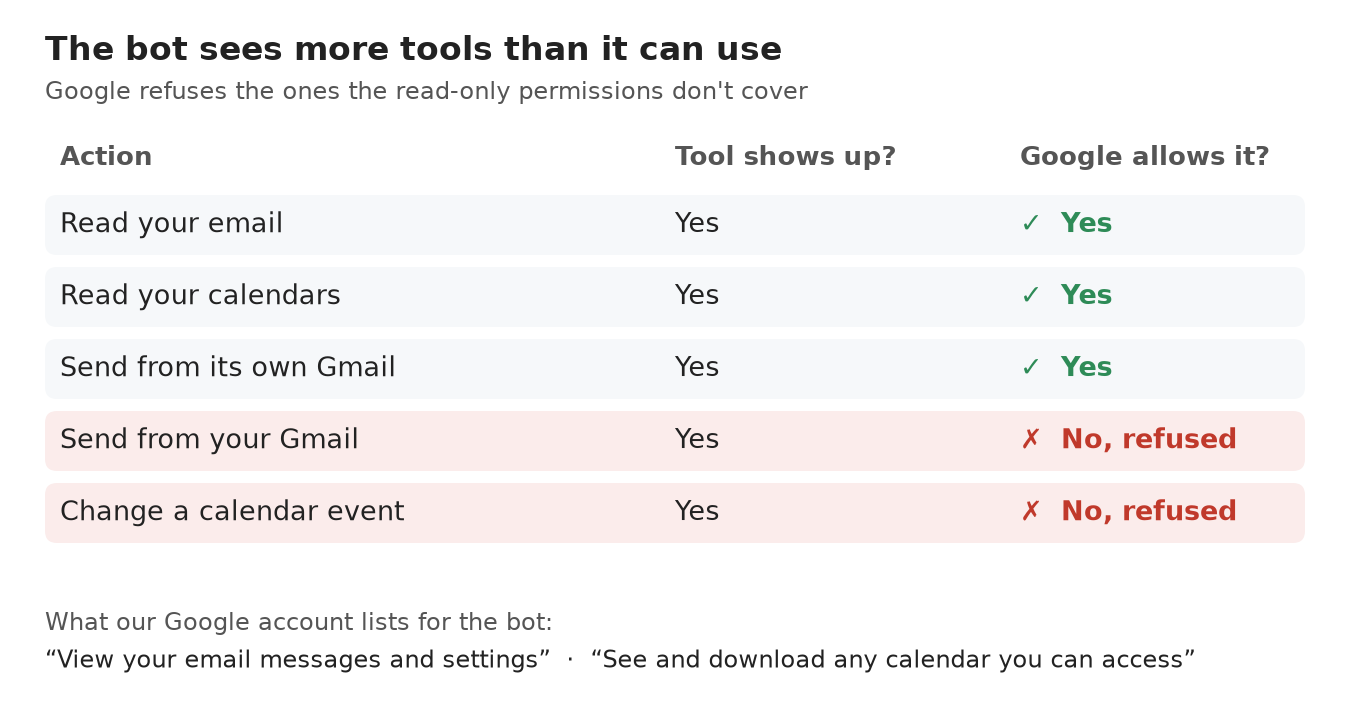
The bot sees tools it can’t use. The permission page is what counts.
Step 3: What Goes in the Prompt?
The prompt is the most important part, and it’s where most of the tuning happens. The full version, for both the daily digest and the Saturday look-ahead, is in the template, with a table that explains each blank. Here’s a shortened version, so you can see its shape:
Daily school digest for [YOUR NAME]. Kids: [KIDS]. Merge new school email and
[SCHOOL APP] into one short, actionable digest covering what's new since the
previous digest.

READ: email from [SENDERS], read-only. Follow every link to the full page.
Leave out [NOISE]. Merge duplicate notices.

WRITE: the 3 most important must-dos at the very top. Then headings [SECTIONS],
each with must-dos first, then dates, then one-line notes.
Every event gets a time, or "time not listed". Work out every weekday from the
date. Never invent a detail. If two sources disagree, say so.

CALENDAR (read-only): if a must-do is already on [CALENDARS], write "Already in
calendar"; otherwise add an "Add to calendar" link. Never change a calendar.

SEND: email from [BOT EMAIL] to [DIGEST LIST] only. Never send from [YOUR EMAIL].
Send every day, even when nothing is new.
The blanks are where your family’s details go: the kids’ grades and schools, the addresses school mail comes from (e.g. the district, the PTA, the after-school club), and the noise to leave out. In our case, the noise is mostly the kids’ sports team apps, which sent 120 emails in the same six weeks that the schools sent about 200.
Step 4: What Should the Bot Never Do?
Most of the rules are about what the bot can’t do, and each one has a reason:
- Never send from your account. Covered in step 1.
- Never change a calendar. The bot reads the calendars and offers a link, and one of you clicks it.
- Never reply to the school, by email or in a school app.
- Never invent a detail. If a time or a place isn’t in the source, the digest says so.
- Work out every weekday from the date. In its first week, our bot took the day of the week from the text of a message instead of from when it was sent, and got it wrong.
- Never skip a source quietly. In October, our Saturday email skipped the school app without saying so, and the digest looked complete. Now, if the bot can’t check a source, a warning goes at the very top.
You don’t need to get all of these right on day one. You’ll find your own the same way I found mine, in the next step.
Step 5: Why Run It by Hand for a Week First?
Before you put the bot on a schedule, run it by hand once a day for about a week, and check every digest against the original emails. You’re looking for anything it missed, anything it got wrong and anything it made up. Every time you find one, add a rule to the prompt that would have prevented it.
A crash is easy to spot, since no digest shows up. A digest that looks complete but isn’t is much worse, because you trust it. Here are a few things from our bot’s last few weeks, more than two months after we started:
- On November 11, the digest said our 5th grader’s parent-teacher conference looked booked, because a conference was on Mimi’s calendar. The very next day, the digest went back to saying we still needed to book one. Each run checks everything again from scratch, and the bot doesn’t remember what it concluded the day before, so it can contradict itself from one day to the next. In this case, the event on the calendar might have been the conference or a separate meeting with the same teacher, and the bot had no way to tell.
- On November 10, it said a sign-up for conferences was full. On November 11, the sign-up still showed open slots, so the bot corrected itself and said it couldn’t confirm either way.
- The schools themselves gave two different dates for a field trip, two different days for an assembly and two different start dates for a book fair. Each time, the digest flagged the conflict for us to check instead of picking a date on its own. That one is the rule working as intended!
The first one is worth knowing about before you start. If the digest says something different today than it did yesterday, don’t assume today’s is right. Check the source.
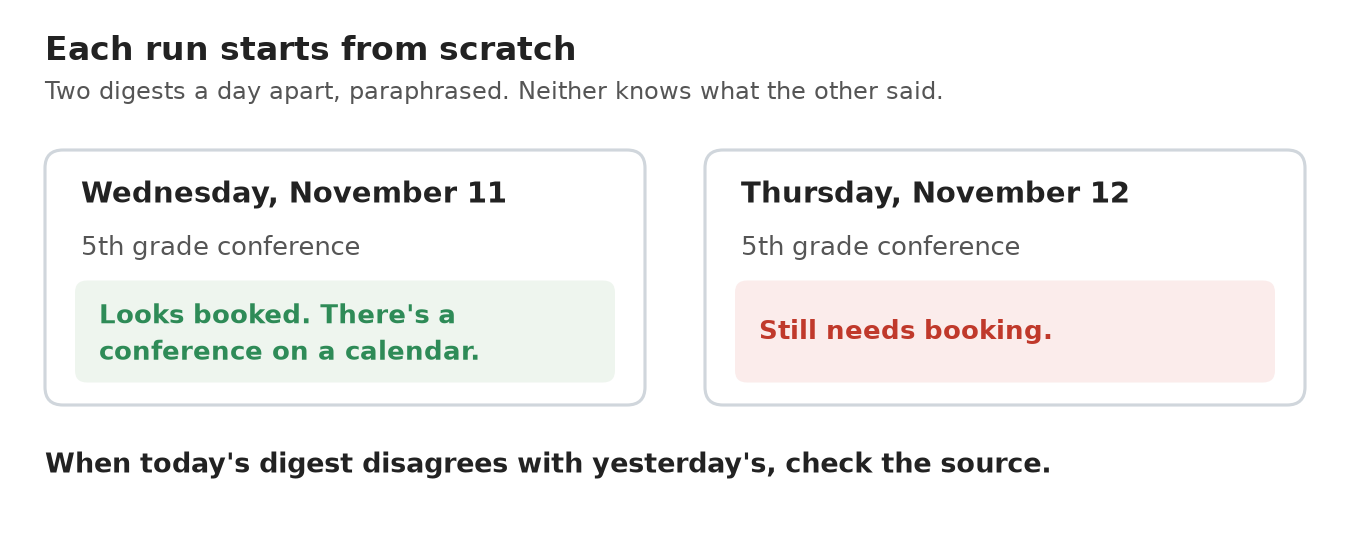
Two digests a day apart, paraphrased.
Step 6: How Do You Put It on a Schedule?
Once a week goes by without a new mistake that matters, put it on a schedule. You don’t need to find a button for this. In Grok Bot, I asked the bot in chat to set up a daily routine and a Saturday routine, and they show up in the Routines list when you click the bot’s name. Ours runs every day at about 4 PM, after the schools have sent their mail, and the look-ahead runs on Saturdays at about 5 PM.
One rule I changed after about eight weeks: send an email every day, even when nothing is new. At first, our bot stayed silent on quiet days, so that an email from it always meant there was something to read. The trouble is that a quiet day looked exactly the same as a broken bot. Since November 2, a quiet day gets a short “nothing new” email that lists what the bot checked: the email, the school app and the calendars. The one exception is a quiet Saturday, because the weekly look-ahead covers it.
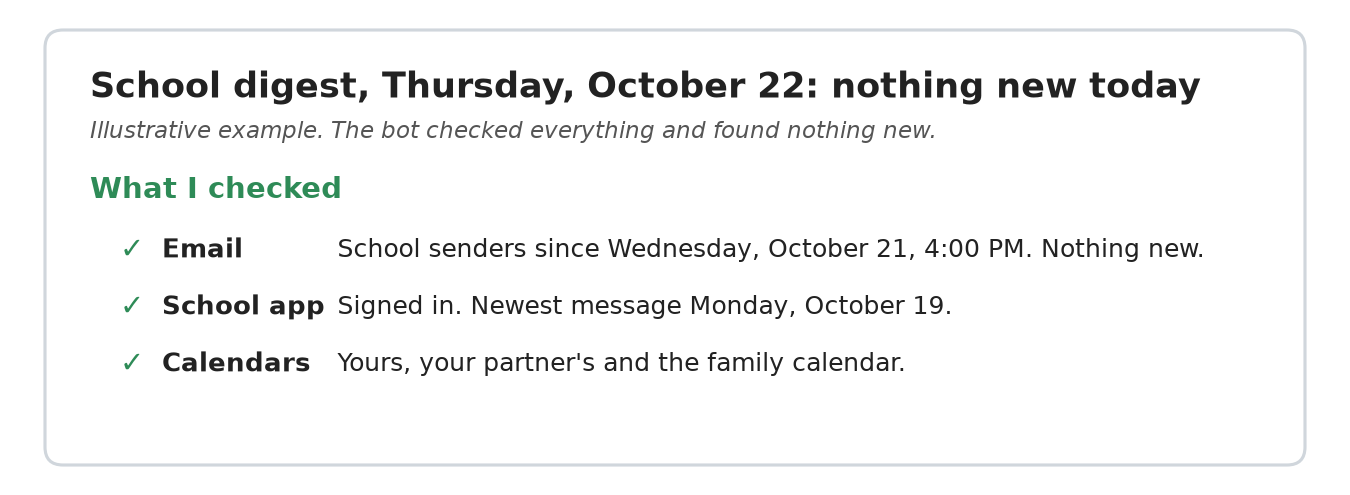
An illustrative quiet-day email. It proves the bot ran.
What About School Apps With No Email?
Our schools also use TalkingPoints, an app for announcements and teacher messages that never reaches email. It has no API, i.e. no official way for a program to read it, so the bot reads it the way a person would, in the web browser on its own cloud computer, and it stays signed in between runs.
Signing in takes a code sent by text message to a phone number the school manages. When the session runs out, the bot puts a note at the top of the digest asking me to sign in, and still sends what it found in email. In Grok Bot, I click “Open computer”, take over the bot’s screen, type in the code from my phone and hand control back. If your school uses an app like this, start with email only, and add the app once the email digest is working.
Where Should You Keep the Prompt?
Keep a copy of the prompt somewhere outside the service, e.g. in a document, and update it every time you add a rule. If the service changes or goes away, the prompt is the bot. Without it, you’d be rebuilding a few weeks of lessons from memory.
If the bot turns into something you rely on, and you’re comfortable with git (a tool that keeps the full history of every change to a folder of files), you can go a step further. My bots each have a profile in a repo, with the prompt, what the bot can access and every lesson so far. I wrote about that in my post on the memex, and the memex-template repo has a starting point.
Thanks for reading.