Grocery Hacking: Automate Your Grocery Shopping Using the Robot Framework
I used Robotic Process Automation (RPA) to automate my grocery shopping so that I can spend less time shopping.
Image credit: Author
My family and I are lucky enough to live in a Seattle neighborhood with 7 supermarkets that are each within walking distance. So, it wasn’t until the pandemic hit, and we were wishing to minimize our contact with others, that we started experimenting with grocery delivery. Like many others, we started working from home and we could now be available to receive deliveries at any time, it just seemed like a no-brainer to give grocery delivery a try.
At the time, the first grocery store in our area to offer delivery, which wasn’t the megacorp that is Amazon, was Fred Meyer, through a partnership with Instacart. Our initial experience was pretty good and we figured that the delivery cost of an extra 15% of the total bill was worth the extra safety of a contact-free delivery. We used Fred Meyer’s delivery service weekly for about 9 months and during this time we learned that it had its shortcomings. We found that Fred Meyer’s online inventory was often out of sync with its actual inventory, which meant that we could easily receive substitutions, or items would just be missing from the delivery as they were out of stock. It became pretty frustrating to have to physically go to the store after a delivery just to pick up the 20% of the items that were not delivered.
Fortunately, in mid 2021, our regular pre-COVID supermarket, Safeway, started offering a delivery service. With a delivery fee of just $3.95, the products we were used to, and substantial savings, this service seemed promising. And, indeed it was — so much so that we’ve been using it for the last 9 months and plan to continue to use the service.
COVID is still very much a thing, but most of my family is vaccinated (we’re still waiting for a vaccine for my 2-year old) and with masks we find it an acceptable risk to shop indoors in well-ventilated spaces. So what keeps us coming back to use a grocery delivery service? Convenience and cost. As much as going to the supermarket with my kids can be fun, as we get to buy a whole bunch of yummy food and we’re all a bunch of goofballs, it’s also tough for my kids to stay focused for 45 minutes during a big shop. This means they’ll be running all over the place and are going to slow down the shopping to a crawling speed (see what I did there?). Instead, my wife and I can do some meal planning on Sunday night, order the groceries, and then have them delivered for just $3.95!
What’s more? Safeway delivery drivers are employees of the store so Safeway doesn’t ask for a tip. With competing services, like those from Instacart, you can easily fork over an additional 10–20% of your bill for a tip and delivery fee. That adds up when you talk about a large shop. Moreover, our Safeway shopping actually leads to significant savings at the gas pump, which is a nice added bonus!
OK, enough background already… let’s talk about how I used to do my shopping before I automated it.
How I used to do my shopping
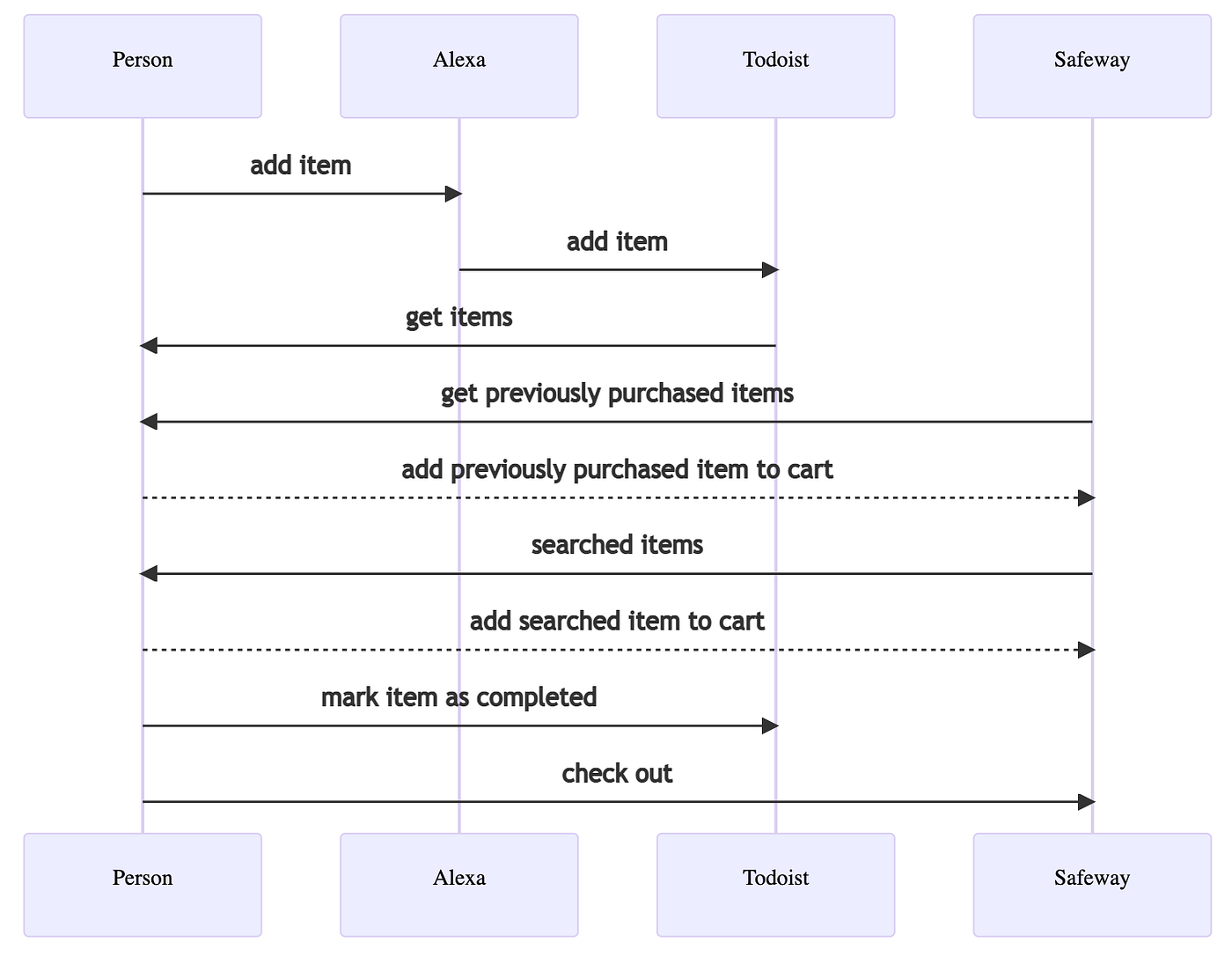
How I used to do my grocery shopping. Image credit: Author
Here’s how it would go:
- During the week, my wife and I (and sometimes our kids) would ask Alexa to add an item to our shopping list. This is easy to do if you just add the item to the list as soon as you know you’re going to need more of it.
- There is then an integration, provided by Todoist, that syncs the items from Alexa to Todoist. We use Todoist instead of the Alexa app to manage our list, as during the early days of Alexa, we found that it was much easier for my wife and I to share lists via Todoist. (This may no longer be the case, but Todoist works well for us and is free, so we keep using it).
- On Sunday night, my wife and I sit down and do some meal planning, survey the refrigerator and cupboard, and then add items to the list via Alexa.
- I fire up my computer and load Todoist and Safeway.com in different browser tabs.
- I then go one by one through the items in my Todoist list. First, I look at the previously purchased items on Safeway, AKA Buy It Again items and if there is a match, I add the item to my cart. Safeway does a pretty good job at recalling the last 300 or so items that I’ve purchased and there is a darn good chance that my item will be in this list.
- If I’ve never purchased the item before or my previous purchase is out of stock, I use the Safeway search feature to search for the item and then add it to the cart.
- I mark the item as completed on my Todolist
- I check out my Safeway cart and schedule a delivery
What’s important to note is that the repetitive tasks of steps 4–7 can take up to 30 minutes. You may ask how this is possible? Well, each item takes about 1 minute to process manually and I can easily have about 30–40 items on my list. This is partly because browsing the Safeway website is a bit slow. On many occasions, I’ve thought that it is a bummer that I have to spend 30 minutes each week ordering my groceries. After all, I’m usually ordering the same stuff and it doesn’t require much intelligence to do this shopping. There must be a better way, right?
You may be thinking:
OK, but doesn’t Alexa already provide a way to shop for products? Surely, this is why Amazon created Alexa?
Actually, it does! Fairly recently, the Alexa app started allowing you to Shop your list. You simply add items to your Alexa list and then use the Alexa app to select from a list of Fresh or Whole Foods products:
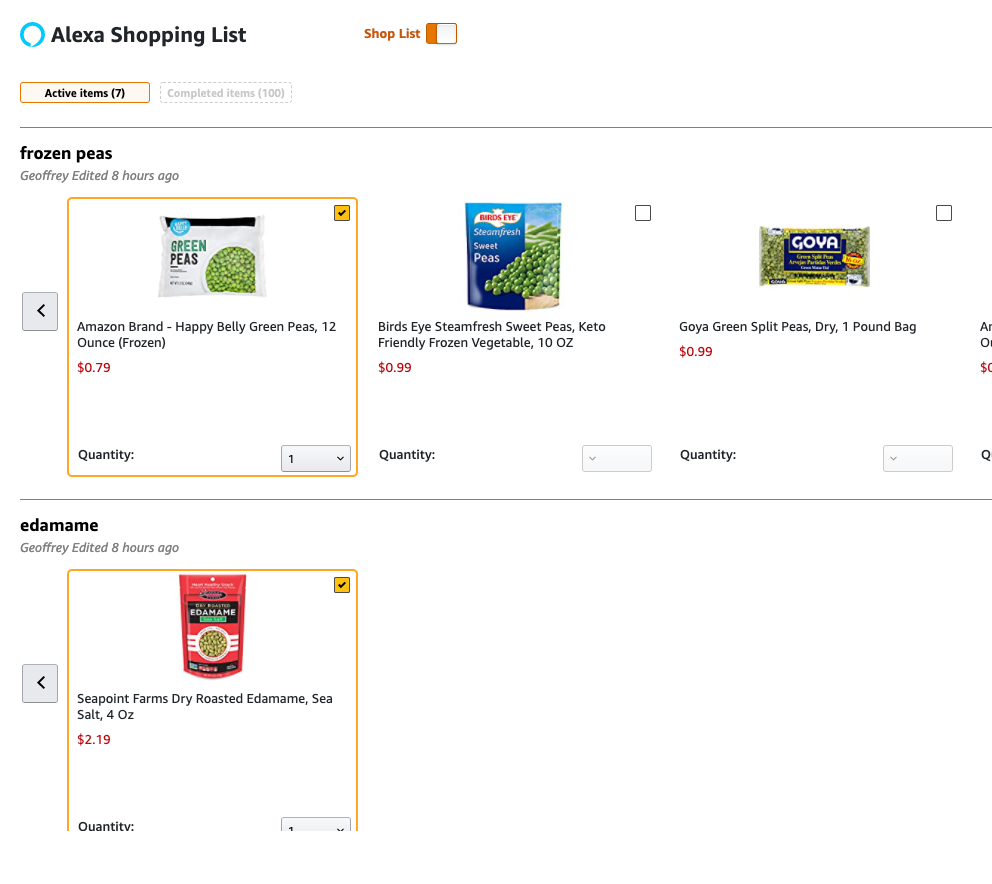
Alexa’s Shop Your List feature. Image credit: Author
This interface is pretty slick, but there’s one problem. My wife says:
I’ve already thought about boycotting Amazon as they aren’t the most socially responsible company. We already buy too much on Amazon and we need to support other grocery stores.
As much as a I love the convenience, speed, and prices on Amazon, she’s right! So, for now, we’ll stick to shopping at Safeway. Sure, Safeway (a subsidiary of Albertsons) is one of the 5 largest grocery chains in the US, but at least it isn’t Amazon.
I was still left wondering if Safeway or Amazon is cheaper. So, I did a quick cost comparison between Safeway and Amazon Fresh by building a shopping cart of 32 similar items on each of their websites. In doing this, I found that their pricing was roughly the same for my basket of products, e.g. around $150:
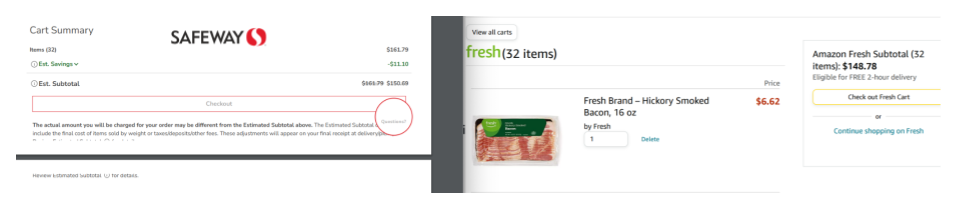
Safeway vs Amazon Fresh pricing. Image credit: Author
Knowing that we wanted to continue using Safeway for grocery delivery and Alexa for our shopping list, I began to wonder how I could automate my shopping? Enter: Robotic Process Automation (RPA)
Robot Process Automation (RPA)
If you haven’t heard of it, RPA is simply a way of automating repetitive tasks, that are normally done by a human, with a software robot. These are often tasks done in Graphical User Interfaces (GUIs) like web browsers, MS Excel, email clients, etc…
I had been casually reading about RPA for the past few years and even pitched it to my non-technical leadership peers at work, when they were looking for a way to automate operational processes without distracting our already-spread-thin engineers. It seemed like the perfect opportunity for me to jump in and build an RPA bot.
After doing some quick research, I quickly learned that there are a number of expensive proprietary RPA vendors like UIPath and Automation Anywhere. I don’t doubt that these systems are worth what you pay for them as they can ultimately reduce your labor costs. But, there are also a few open-source solutions like Robot Framework and TagUI, and as a frequent contributor to open source, I’m a big fan of open source.
Currently, Robot Framework has the most GitHub stars and is supported by an extensive community. So, I fired up a quick Getting Started with Robot Framework Tutorial and found it pretty straightforward to build a bot that could navigate a website. I found it very cool that Robot Framework is a layer on top of Python and therefore, it is easy to insert custom Python code into the bot. And, what I found particularly cool is that there are community provided libraries for all types of things.
Goals of the bot
Before we get into how I built my bot, let’s discuss my goals. As a software engineer, I knew I could craft some code that fired off API requests to the Todoist and Safeway backends. However, this would sidestep my desire to play with the Robot Framework. Instead, I opted to use the SeleniumLibrary with Robot Framework, which under the hood would allow me to build a bot that uses Selenium to control a browser in a way that is very similar to how I would otherwise manually use a browser to do my grocery shopping.
Later, I’ll mention some of the pitfalls I found with RPA and why in the future, I would choose to make an API-based bot instead of a GUI-based bot. In fact, Todoist appears to have a supported developer API. Safeway/Albertsons does not appear to have a developer API, but its website does make backend calls and therefore you could reverse engineer the backend API.
My other goal was to simplify the deployment architecture by not introducing another datastore. In other words, I wanted my bot to just use the data in Todoist and Safeway and not have to store anything in a separate datastore. Ultimately, I’m able to do my grocery shopping without writing down anything extra so why can’t the bot function without an additional database?
Building the bot
In the next few sections, I’m going to be walking through excerpts of my bot code. Please feel free to download the full source code at github.com/redgeoff/grocery-shopping-bot
If you are new to the Robot Framework, please read through Robot Framework Quick Start: UI Automation Tutorial.
Reusable keywords
The Robot Framework refers to your typical programming language function as a keyword. We’re going to define some keywords so that we can abstract some of the rough edges that you’ll encounter when working with a website in a browser. In particular, websites are beasts that load many elements asynchronously, which means that elements may not yet be visible or enabled. Bots are inherently much faster than humans so if you aren’t careful, it is easy for your bot to error out from the UI not yet being ready or because other race conditions occur. Of course, you could insert Sleep statements in your code, which would simulate the timing that a human would encounter, but this is an anti-pattern because:
- Adding
Sleepstatements will make your bot much slower - Timing can vary based on the network, the backend servers, and even your compute power.
Instead, we’ll create some helper keywords that will wait for elements to be visible and enabled, and even introduce a retry loop for when the page takes an exorbitant amount of time to load or an unexpected error occurs.
Our first keyword will be Wait Until Element Ready:
Wait Until Element Ready Inner
    [Arguments]    ${locator}    ${timeout}=None

    Wait Until Page Contains Element    ${locator}    ${timeout}
    Wait Until Element Is Visible    ${locator}
    Wait Until Element Is Enabled    ${locator}
    Scroll Element Into View    ${locator}

    Wait Until Element Is Visible    ${locator}
    Wait Until Element Is Enabled    ${locator}
    Scroll Element Into View    ${locator}

Wait Until Element Ready
    [Arguments]    ${locator}    ${timeout}=None
    Wait Until Keyword Succeeds    3   1s    Wait Until Element Ready Inner    ${locator}    ${timeout}
Next, we’ll define Click Element When Ready, which uses Wait Until Element Ready and then clicks the element.
Click Element When Ready Inner
    [Arguments]    ${locator}
    Wait Until Element Ready    ${locator}
    ${element}=    Get WebElement     ${locator}
    Click Element    ${element}
    [Return]    ${element}

Click Element When Ready
    [Arguments]    ${locator}
    Wait Until Keyword Succeeds    3   1s    Click Element When Ready Inner    ${locator}
To make it so that we can resume the same browser session, which will help us to avoid Todoist sending us an email each time we log in, we’ll borrow a trick from this post.
Open Browser Profiled
    [Arguments]    ${url}
    ${options}=    Evaluate    sys.modules['selenium.webdriver'].ChromeOptions()    sys, selenium.webdriver
    Call Method    ${options}    add_argument    --user-data-dir\=${USER_DATA_PATH}
    Create WebDriver    Chrome    chrome_options=${options}
    Go To    ${url}
Finally, using a trick from this post, we’ll define a way to get child elements. This will help us to do things like get a list of groceries and then pluck out the nested attributes.
Get Child WebElements
    [Arguments]    ${locator}   ${child_xpath}

    ${element}    Get WebElement    ${locator}
    ${children}     Call Method
    ...                ${element}
    ...                find_elements
    ...                  by=xpath    value=.${child_xpath}

    [Return]      ${children}
The actual bot, has a number of other reusable keywords, but they are omitted from this post for brevity.
We’ve now abstracted some of the less-fun stuff, let’s jump into making the bot do it’s thang!
Get the list from Todoist
The first thing we want the bot to do is log in to Todoist, select our desired list, and then save the list to memory. The Todoist page that lists our items, looks like this:
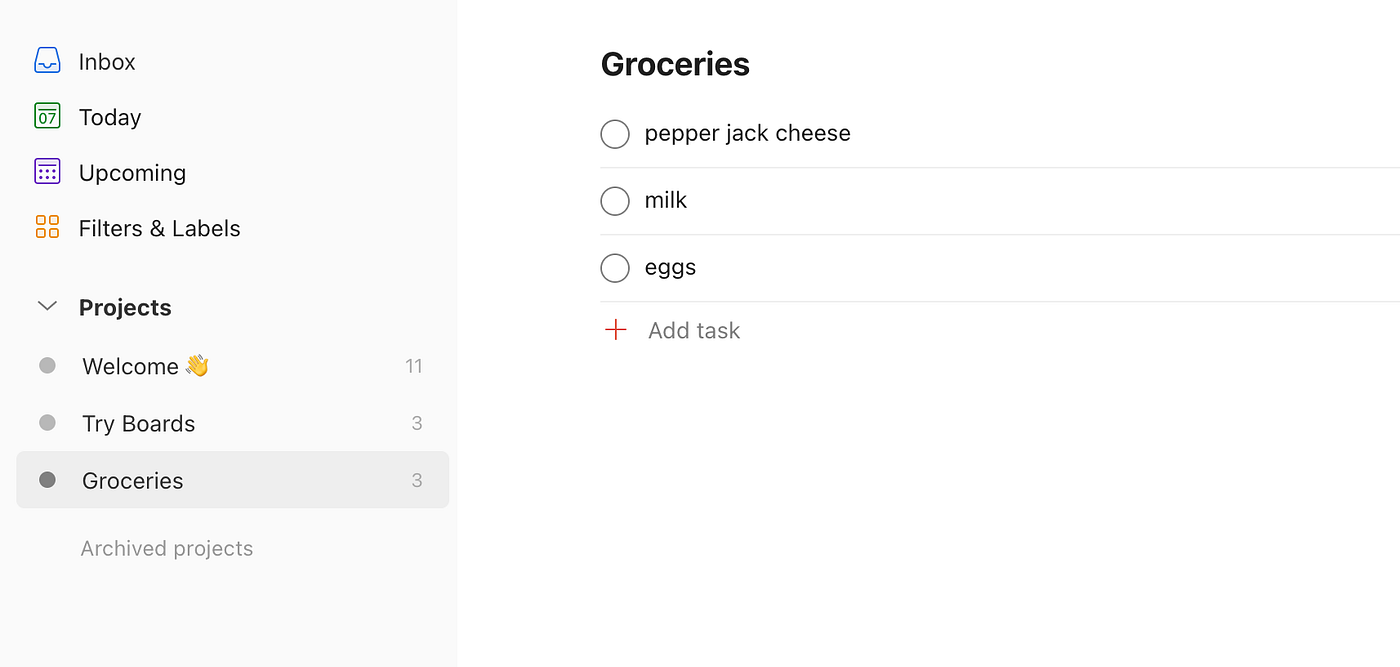
Todoist shopping list. Image credit: Author
To avoid making extra log-ins and triggering emails from Todoist, we’ll make it so that the bot only logs in when we aren’t already logged in. This is particularly helpful during testing when you need to run the script MANY times to find all the race conditions that result from navigating the website in the browser. Naturally, you could log in (and log out) each time the script runs if you’d prefer.
*** Variables ***
${TODOIST_TODAY}          https://todoist.com/app/today
${TODOIST_TODAY_TITLE}    Today: Todoist

*** Keywords ***

Log In To Todoist
    [Arguments]    ${email}   ${password}
    Wait Until Element Ready    email
    Wait Until Element Ready    password
    Input Text              email                   ${email}
    Input Password          password                ${password}
    Click Button            Log in
    Wait Until Page Contains    Today    timeout=30s
    Update Settings If Needed

Log In Or Open Todoist Inner
    [Arguments]    ${email}   ${password}
    Go To   ${TODOIST_TODAY}
    Wait Until Page Contains Element   xpath=//*[.='Log in' or .='Today']   # Wait for page to settle
    ${logged_in}=    Run Keyword And Return Status   Title Should Be   ${TODOIST_TODAY_TITLE}
    IF    not ${logged_in}
        Log In To Todoist   ${email}   ${password}
    END

Log In Or Open Todoist
    [Arguments]    ${email}   ${password}
    Wait Until Keyword Succeeds    5x    2 sec    Log In Or Open Todoist Inner    ${email}   ${password}

Select Todoist List
    [Arguments]    ${list_name}
    Update Settings If Needed
    Click Element When Ready   xpath:(.//span[contains(., '${list_name}')])[1]

Get Todoist List Items
    @{locators}=     Get WebElements    xpath=//li[contains(@class,'task_list_item')]
    ${items}=       Create List
    FOR   ${locator}    IN    @{locators}
        ${list_item}   Get Child WebElements   ${locator}    //div[contains(@class,'task_list_item__content')]
        ${name}=    Get Text    ${list_item}
        ${id}=    Get Element Attribute    ${locator}   data-item-id
        ${item}=    Create Dictionary   id=${id}    name=${name}
        Append To List    ${items}   ${item}
    END
    [Return]      ${items}
If you take a closer look at the Get Todoist List Items keyword, you’ll see that we are using an XPath query to get all the li elements with a task_list_item class. And then we pluck the list_item child element so that we can get the item name and id. (Yes, this is how Todoist identifies the items in their HTML and if you think this looks brittle… well, yup)
You can find the complete code at todoist.robot.
Buy it again
After we get the items from Todoist, the next step is to add corresponding items to our Safeway cart. Now, we could just go to the Safeway search page and search for the item, but the search page orders by Best Match and doesn’t allow you to order by the most recently purchased items._
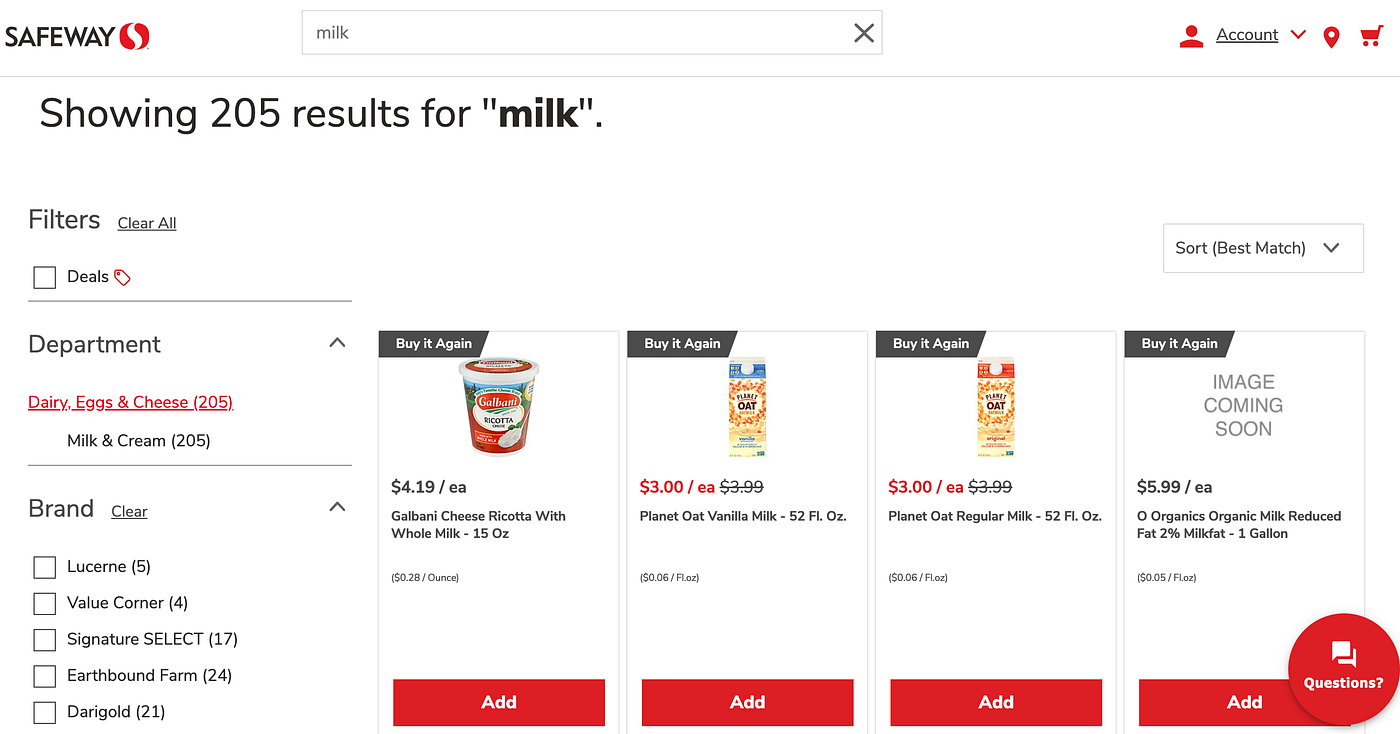
Safeway’s search page. Image credit: Author
The problem is that sometimes we buy items just because others are out of stock, even though we have a preference for the items that are out of stock. Instead, I want to first give preference to the items that we frequently purchase. This way, we’ll always attempt to first grab our preferred item, even if it is not in stock until the next time we shop. Sure as a human, I can simply pick what I want from the list, but the bot isn’t that smart. For the bot, we can do this by going to the Buy It Again page and sorting by Frequently Purchased:
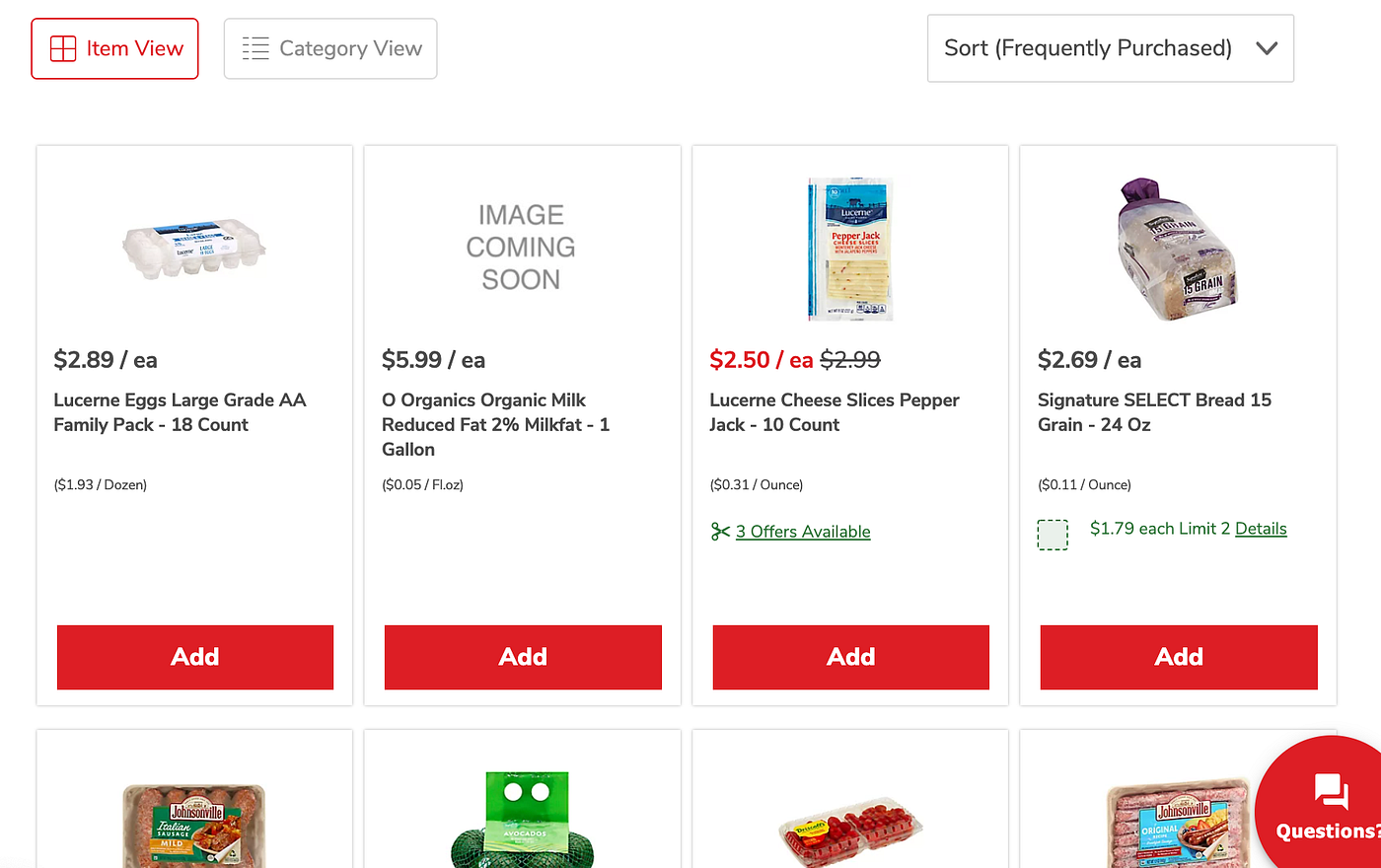
Sort by Frequently Purchased. Image credit: Author
Our bot will then iterate through the list of items that we got from Todoist and look for the first match in Safeway’s Buy It Again list. It will then add that item to the Safeway cart.
*** Variables ***
${SAFEWAY_HOMEPAGE}     https://www.safeway.com
${SAFEWAY_BUY_IT_AGAIN_URL}   https://www.safeway.com/shop/purchases/buy-it-again.html

*** Keywords ***

Capture List
    @{locators}=     Get WebElements    xpath=//product-item-v2
    ${items}=       Create List
    FOR   ${locator}    IN    @{locators}
        ${title}   Get Child WebElements   ${locator}    //*[contains(@class,'product-title')]
        ${name}=    Get Text    ${title}
        ${id}=    Get Element Attribute    ${title}   data-bpn
        ${url}=    Get Element Attribute    ${title}   href
        ${add_button}   Get Child WebElements   ${locator}    //*[@data-qa='addbutton']
        ${available}=    Run Keyword And Return Status   Page Should Contain Element   ${add_button}
        ${remove_button}   Get Child WebElements   ${locator}    //*[@data-qa='prdctdcrmntr']
        ${in_cart}=    Run Keyword And Return Status   Page Should Contain Element   ${remove_button}
        ${item}=    Create Dictionary   id=${id}    name=${name}    url=${url}    available=${available}    in_cart=${in_cart}
        Append To List    ${items}   ${item}
    END
    [Return]      ${items}

Sort Buy It Again Items
    Click Element When Ready    //*[@data-qa='srt-ptns-dflt']
    Click Link    Frequently Purchased

Get Buy It Again Items
    [Arguments]   ${max_pages}
    Go To   ${SAFEWAY_BUY_IT_AGAIN_URL}
    Dismiss Popups If Needed
    Sort Buy It Again Items
    Load More Items   ${max_pages}
    ${items}=      Capture List
    [Return]    ${items}

Load More Items
    [Arguments]    ${max_pages}
    ${result}    ${condition}=    Run Keyword And Ignore Error    Wait Until Page Contains    Load more   error=false
    FOR   ${i}    IN RANGE    1   ${max_pages}
        Exit For Loop If    '${result}'=='FAIL'
        Click Button    Load more
        ${result}    ${condition}=    Run Keyword And Ignore Error    Wait Until Page Contains    Load more   error=false
    END

Add To Cart
    [Arguments]   ${item_id}

    Wait Until Element Ready    //*[@id='addButton_${item_id}']

    # Safeway requires a mouse over before the item can be added to the cart
    Set Focus To Element    //*[@id='addButton_${item_id}']
    Mouse Over    //*[@id='addButton_${item_id}']

    Click Element When Ready   //*[@id='addButton_${item_id}']

    # Wait for loading spinner to disappear
    Wait Until Page Does Not Contain Element    //*[@class='quantity-loading']

    # Wait enough time for cart addition to settle
    Wait Until Page Does Not Contain Element    //*[@id='addButton_${item_id}']
    Wait Until Element Ready    //*[@id='dec_qtyInfo_${item_id}']    timeout=10s

Buy It Again
    [Arguments]   ${items_to_buy}   ${max_pages}
    ${buy_it_again_items}=    Get Buy It Again Items    ${max_pages}
    ${items_in_cart}=       Create List
    ${items_not_found}=       Create List
    FOR   ${item_to_buy}    IN    @{items_to_buy}
        Set Local Variable    ${added_to_cart}    False
        FOR   ${buy_it_again_item}    IN    @{buy_it_again_items}
            ${name_matches}=    Run Keyword And Return Status    Should Contain    ${buy_it_again_item.name}   ${item_to_buy.name}    ignore_case=True
            IF    '${name_matches}'=='True' and ('${buy_it_again_item.available}'=='True' or '${buy_it_again_item.in_cart}'=='True')
                # Look up the availability again as we may have just added the item to the cart so
                # we cannot use ${buy_it_again_item.available}
                ${available}=    Run Keyword And Return Status   Page Should Contain Element   //*[@id='addButton_${buy_it_again_item.id}']

                # If the item is already in the cart then we just ignore it as this allows us to
                # retry the script without it adding any additional items to the cart
                IF    '${available}'=='True'
                    Log To Console    Adding to cart: ${buy_it_again_item.name} (Todoist item name: ${item_to_buy.name})
                    Wait Until Keyword Succeeds    10x    2 sec    Add To Cart    ${buy_it_again_item.id}
                ELSE
                    Log To Console    Already in cart: ${buy_it_again_item.name} (Todoist item name: ${item_to_buy.name})
                END
                Set To Dictionary    ${item_to_buy}    name_in_store=${buy_it_again_item.name}
                Append To List    ${items_in_cart}    ${item_to_buy}
                Set Local Variable    ${added_to_cart}    True
                Exit For Loop
            END
        END
        IF    '${added_to_cart}'=='False'
            Append To List    ${items_not_found}   ${item_to_buy}
        END
    END

    [Return]   ${items_in_cart}   ${items_not_found}    ${buy_it_again_items}
Did you notice the fun stuff happening in Add To Cart? Well, the Safeway website requires that you mouse over an item and then click it before it can be added to the cart. As for the Wait Until Page Does Not Contain Element, the website flashes a loading icon when an item is added to the cart and we want to wait until this icon is no longer displayed as this confirms that the item is in our cart. (Pro Tip: to inspect a disappearing element in Chrome, open the Sources tab, and hit F8 to stop the browser execution and keep the icon displayed)
You can view the complete Safeway robot code at safeway.robot.
Search for items not purchased before
If you are like me, and most of your grocery shopping includes the same 300 or so items, the bot will have completed almost your entire list just by shopping from the Buy It Again (recently purchased) page. The remaining handful of items on your list will likely be those that you have never purchased before, e.g. you are trying a new recipe or your typical brand is out of stock.
There are also other reasons why you’ll have remaining items in your list:
- Safeway truncates long product names, e.g. Signature Care Wipes Sensitive…
- The formatting of the items in your list may not match, e.g. nutrigrain vs nutri-grain
- The items in your list have names that don’t match the name of the Safeway item. As you might expect, Safeway associates hidden keywords with each product. For example, you may have pepper jack cheese on your list, but the Safeway product may be called Cheese Slices Pepper Jack
To handle these cases, our bot, visits the Safeway search page and simply picks the first item that is in stock to add to the cart:
Find Item And Buy It Again
    [Arguments]   ${item_name}    ${buy_it_again_items}
    Go To   https://www.safeway.com/shop/search-results.html?q=${item_name}
    Load More Items   2

    ${added_to_cart}    ${name_in_store}=    Add Found Items With Buy It Again Badge

    [Return]    ${added_to_cart}    ${name_in_store}

Find And Buy It Again
    [Arguments]   ${items_to_buy}    ${buy_it_again_items}
    ${items_in_cart}=       Create List
    ${items_not_found}=       Create List
    FOR   ${item_to_buy}    IN    @{items_to_buy}
        ${added_to_cart}    ${name_in_store}    Find Item And Buy It Again    ${item_to_buy.name}    ${buy_it_again_items}
        IF    '${added_to_cart}'=='True'
            Log To Console    Found and adding to cart: ${item_to_buy.name} (Name in store: ${name_in_store})
            Set To Dictionary    ${item_to_buy}    name_in_store=${name_in_store}
            Append To List    ${items_in_cart}   ${item_to_buy}
        ELSE
            Log To Console    Not found: ${item_to_buy.name}
            Append To List    ${items_not_found}   ${item_to_buy}
        END
    END
    [Return]   ${items_in_cart}   ${items_not_found}
Mark Todolist items completed
By now, our bot created a cart with every item it could find. The next step is to mark these items as completed on our Todoist list.
Mark Todoist Item Completed
    [Arguments]    ${id}
    Click Element When Ready    //button[@aria-describedBy='task-${id}-content']

Mark Todoist Items Completed
    [Arguments]    ${items}
    Set Local Variable    ${i}    1
    FOR   ${item}    IN    @{items}
        Log To Console    Marking Todoist item #${i} as completed: ${item.name} (Name in Store: ${item.name_in_store})
        Wait Until Keyword Succeeds    10x    2 sec    Mark Todoist Item Completed   ${item.id}
        IF    ${i} % 10 == 0
            Sleep   10
        ELSE
            Sleep   2
        END
        ${i}    Evaluate    ${i}+1
    END
Hold on, what’s up with those Sleep statements? Shouldn’t we avoid them? Yes, but Todoist appears to have some sort of rate limiting in place. In other words, if our bot it too fast, the website will error out as humans don’t complete items that quickly. In my testing, I found that when I took 2 seconds in between items and waited 10 seconds after each batch of 10 items I avoided this rate limiting. (You may be saying once again, but this looks brittle… yup! 😵💫)
Send an email with the list of items added to cart
The last thing that I wanted my bot to do was to send an email that lists all the items that were added to the cart. The email should list the name of the item as it appeared on my Todoist list and as it appears in my Safeway shopping cart. I’m then able to inspect this email quickly to see if anything looks out of place. I’ve typically found that at least a couple items look funky.
One rare reason is that Safeway’s search can be a little buggy. For example, if you search for bananas, the first result is a cabbage:
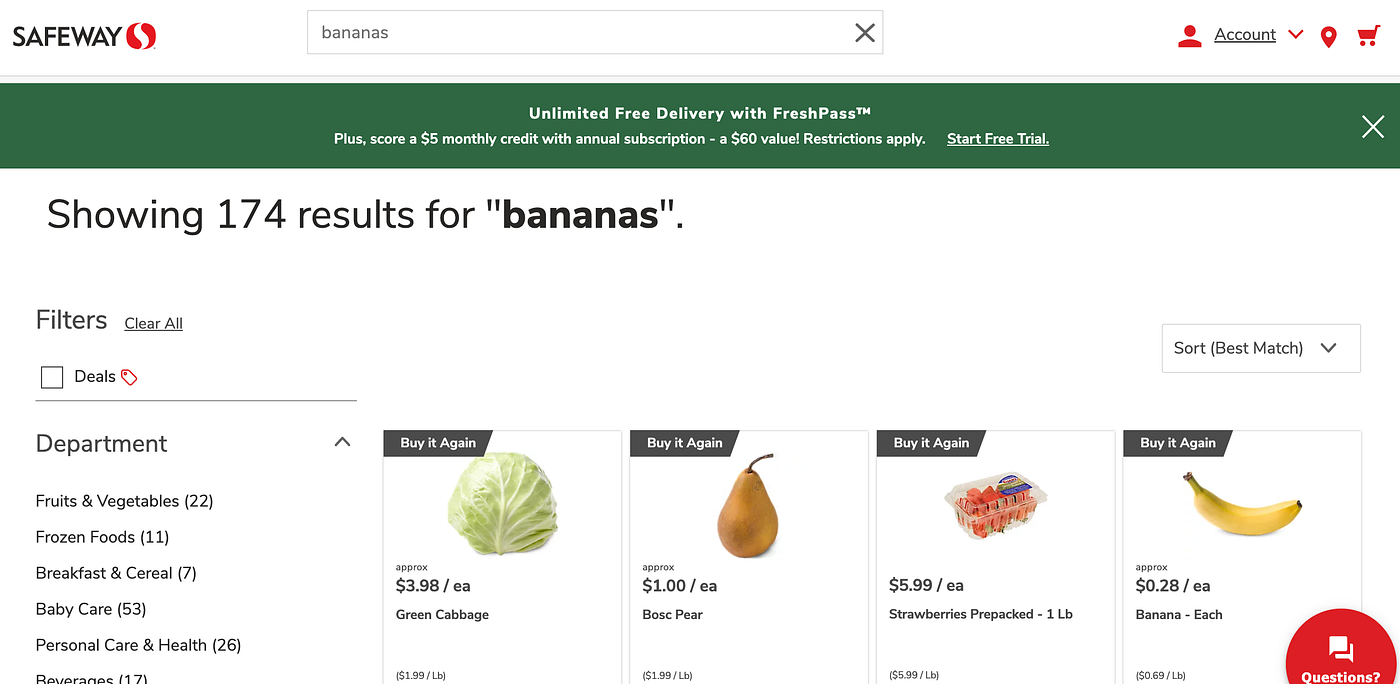
Searching for “banana”, finds a cabbage. Image credit: Author
Another thing that can occur is that a simple Todoist item like onion can actually match both Green Onion and Yellow Onion in the Buy It Again list. One way that I’ve thought about improving this in the future is to have a Replacements list that I can use to train the bot so that whenever I say onion, I mean Yellow Onion. For the MVP of my bot however, a simple email like the following is enough to empower me to make a few manual tweaks to my cart:
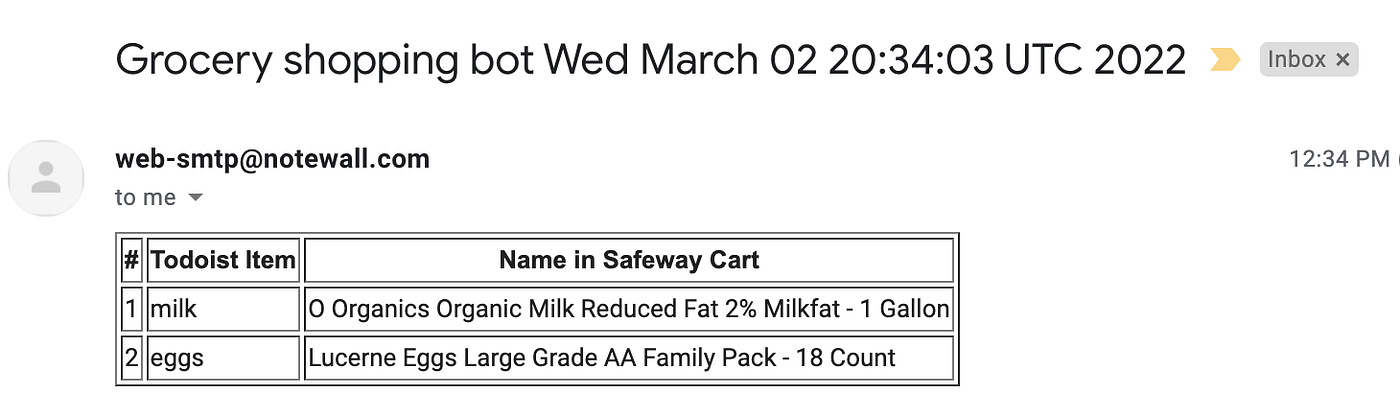
Example grocery shopping bot email. Image credit: Author
From what I can tell, sending an email with Robot Framework isn’t as out-of-the-box as you would hope. Robocorp, a pretty cool hosting company for Robot Framework bots, maintains an RPA Library for Email, but I found that it didn’t play well with the ppodgorsek/robot-framework Docker image that I was using to run my robot in a container. In addition, I was excited to use a custom Python script in my bot and knew that sending an email with Python is trivial. So, I simply created a custom Email.py file:
import smtplib, ssl
from email.message import EmailMessage

def send_html_email(smtp_username, smtp_password, smtp_server, smtp_port, email_recipient, subject, body):
    msg = EmailMessage()
    msg['Subject'] = subject
    msg['From'] = smtp_username
    msg['To'] = email_recipient
    msg.add_alternative(body, subtype='html');

    context = ssl.create_default_context()
    with smtplib.SMTP_SSL(smtp_server, smtp_port, context=context) as server:
        server.login(smtp_username, smtp_password)
        server.send_message(msg);
and exposed it via a Send Email keyword:
*** Settings ***
Documentation     Send Email
Library           DateTime
Library           Email.py

*** Keywords ***

Send Email
    [Arguments]    ${smtp_username}    ${smtp_password}    ${smtp_server}    ${smtp_port}    ${email_recipient}    ${items_in_cart}
    ${date}=      Get Current Date      UTC      exclude_millis=yes
    ${converted_date}=      Convert Date      ${date}      result_format=%a %B %d %H:%M:%S UTC %Y

    Set Local Variable    ${i}    1
    Set Local Variable    ${body}    <table border="1"><tr><th>#</th><th>Todoist Item</th><th>Name in Safeway Cart</th></tr>
    FOR   ${item}    IN    @{items_in_cart}
        ${body}=    Catenate    ${body}    <tr><td>${i}</td><td>${item.name}</td><td>${item.name_in_store}</td></tr>
        ${i}    Evaluate    ${i}+1
    END
    ${body}=    Catenate    ${body}    </table>

    Send Html Email    ${smtp_username}    ${smtp_password}    ${smtp_server}    ${smtp_port}    ${email_recipient}    Grocery shopping bot ${converted_date}    ${body}
The Email.py script connects to an SMTP server and sends an HTML email. I simply set up a new Gmail account and enabled SMTP access by enabling the allow less secure apps option.
Note: it is very likely that emails sent this way will end up in your Spam folder so you may need to create a filter to keep them out of your Spam folder. Sending non-spamy emails from a proper mail host is a rather involved process and is out of the scope of this post.
Running the bot
Here’s a quick video that demos how to run the bot: watch the demo on Loom.
To run the bot locally, follow the steps here.
After you run the bot, you’ll see that an output directory was created and it contains some new artifacts:
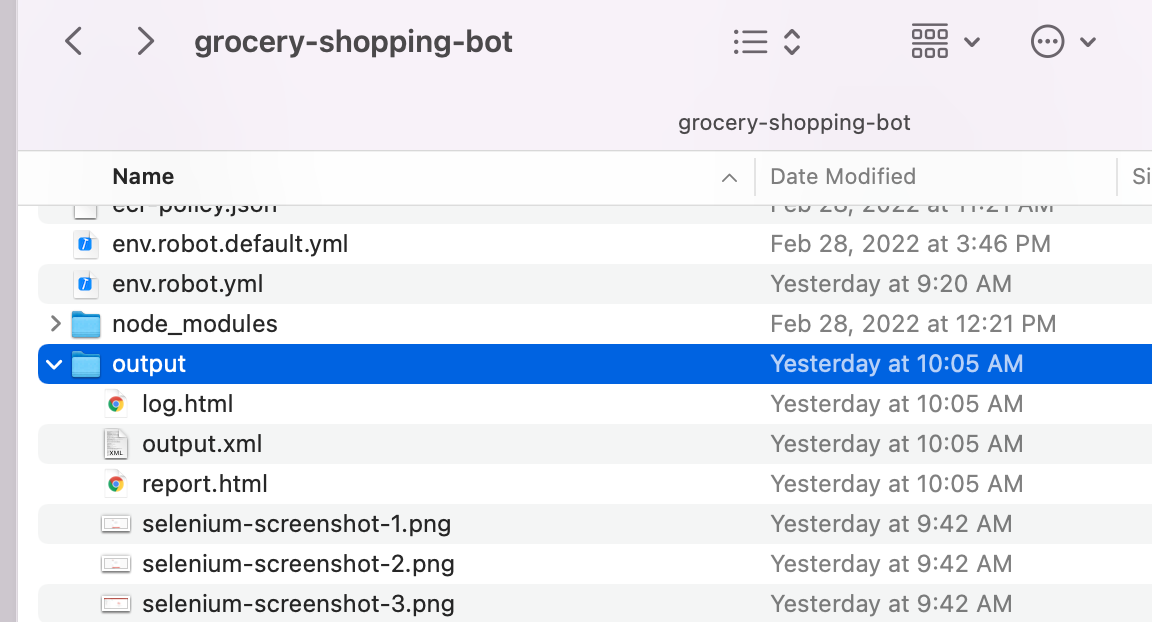
Output directory contains Robot Framework logs. Image credit: Author
You can open the log.html to view a detailed log from the bot, e.g.
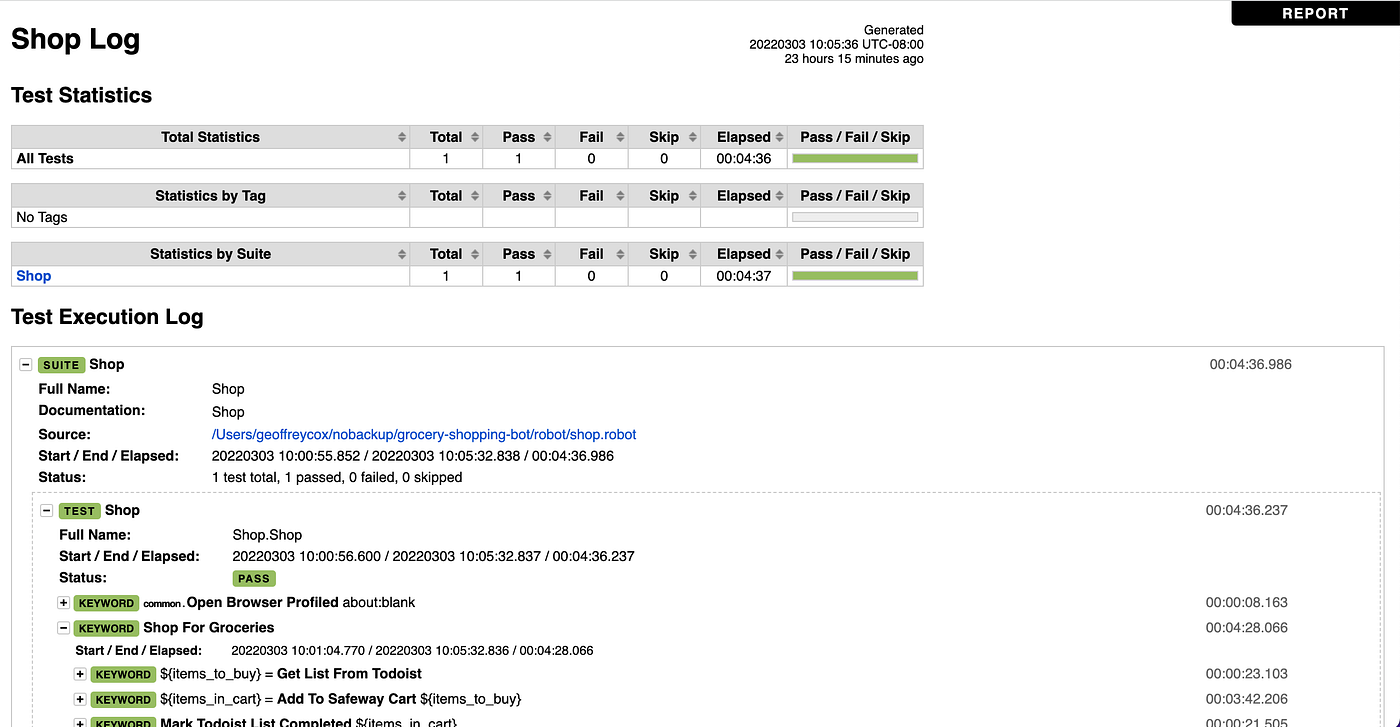
Robot Framework logs. Image credit: Author
This log, and the embedded screenshots, can be quite helpful to troubleshoot any issues.
Useful tooling
If you are a Visual Studio (VS) Code user, I found that the Robot Framework Intellisense extension can be very helpful.
If you are not already acquainted with the Inspect feature in the browser console, I suggest that you give it a try as it allows you to discover the structure of the elements on a webpage:
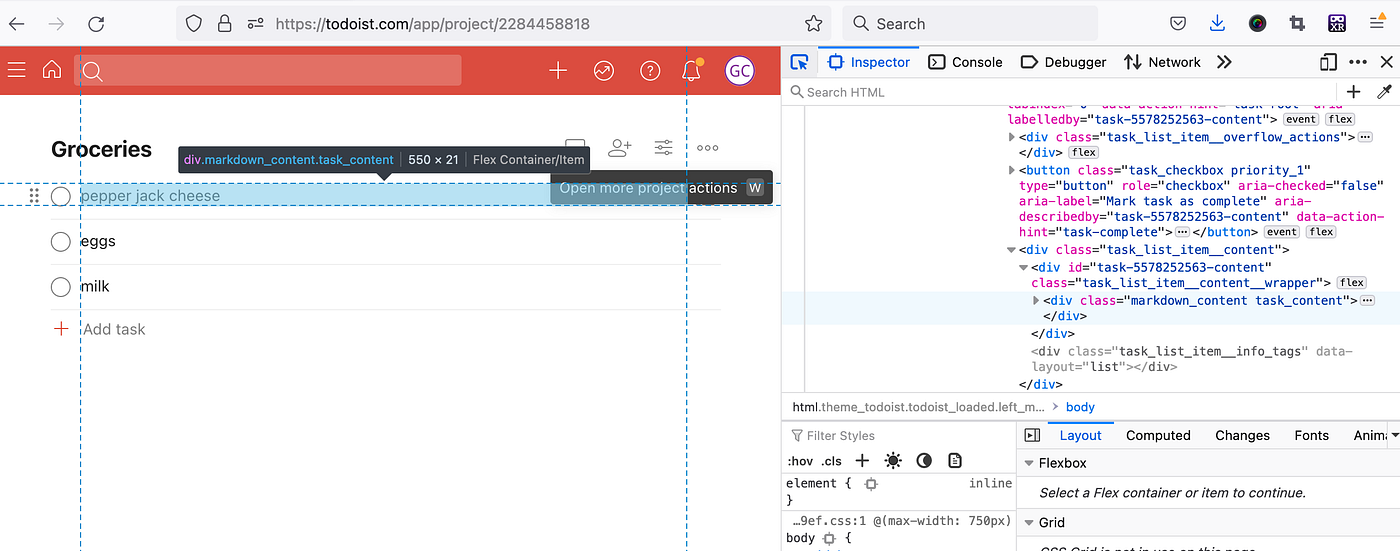
Inspect HTML elements in Firefox. Image credit: Author
As you may have noticed in the code above, because Todoist’s and Safeway’s websites aren’t really the most accessible, the bot uses XPath to navigate the websites. For example, we select all the Todoist items with:
Get WebElements xpath=//li[contains(@class,'task_list_item')]
A lesser known feature of Chrome and Firefox is that you can actually test out your XPath query in the console with the $x() function:
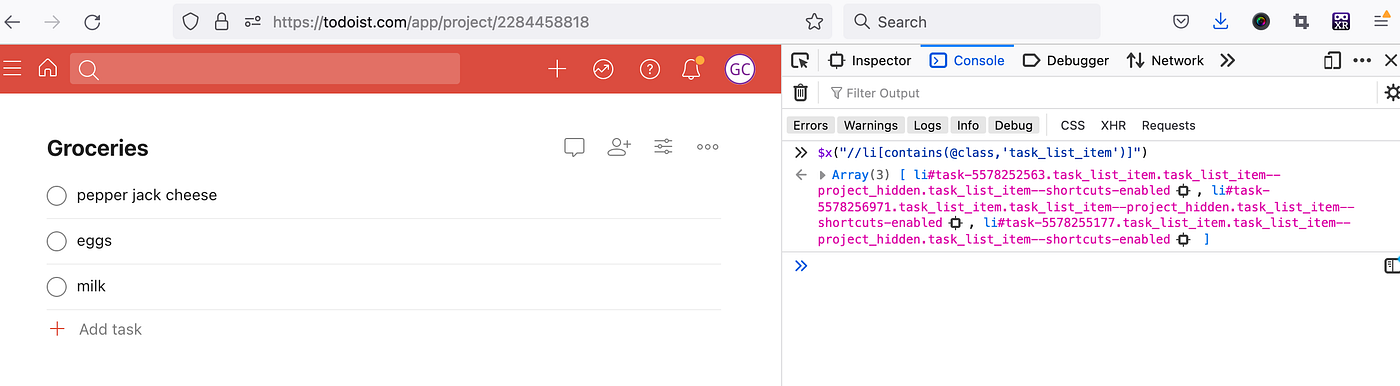
Test XPath queries in Firefox. Image credit: Author
Running the bot in headless mode using Docker
What if you want to run the bot without a UI (headless) and in the background? Easy, just follow the directions at Run Locally with Docker.
What if you want to deploy the bot to the cloud? I’ll cover this in detail in a later post, but for now, take a look at the steps at Deploy to AWS for how I run the bot for just pennies a month.
Possible Enhancements
This bot is just a Minimal Viable Product (MVP). Here are some things that I think could be added to make it even more useful:
- As mentioned above, a list of Replacements could be used to substitute items like onion with Yellow Onion so that it doesn’t just match Green Onion.
- Assuming that a human will perform minor tweaks to the list after the bot has run, it should be possible for the bot to learn from these tweaks. In other words, if the bot determines that a Yellow Onion was purchased, when the original item on the list was onion, it could add
onion => yellow onionto the Replacements list on your behalf. - Keyword expansion could be used so that a single word can represent a basket of items. For example, your family may eat a lot of fruit and want the fruit keyword to include strawberries, raspberries, and blueberries. This feature could also be good for ordering all the groceries for a dish. Perhaps, this is implemented as part of the Replacements list, i.e.
lasagne => ricotta, beef, eggs, ... - Support for item counts. For example, 7 bananas would add 7 bananas to the shopping cart. For now, the bot adds just one banana to the cart and a human has to increase the count manually after the bot has finished executing.
- On Safeway’s product pages there is sometimes an option to clip a coupon for a specific product, i.e. you can save some money on the purchase. The bot should do this for you.
- As shown above, Alexa’s shop your list feature provides a UI that allows you to select from a list of the top search results that match the item on your shopping list. There could be value in displaying such an interface after the bot has run so that you can make any needed tweaks quickly.
- The bot could analyze your purchasing habits and make recommendations to buy certain items in bulk when you consume items fast enough and when purchasing in bulk would result in saving money.
- Use machine learning to suggest products that have never been shopped for (new products) based on your existing preferences for brand, price, flavor, and size.
- Support for other grocery stores. The existing bot already supports any smart speaker that integrates with Todoist, but it only supports the grocery store, Safeway.
Is RPA the best way to implement this bot?
Probably not. As much fun as it was playing with the Robot Framework, the use of the framework, through the browser, led to a fairly brittle solution. If Todoist or Safeway decide to change their websites, the bot will most likely break.
I’d argue that the best way to implement such a bot is to use an officially supported developer API, such as what is provided by Todoist (or Alexa). The main reason is that this API is a contract with which Todoist will attempt to adhere. Or, in other words, it would make it a lot less likely that Todoist would introduce a change that would break the bot.
Safeway on the other hand, doesn’t appear to have a supported developer API. Instead, you could use the browser’s Network tab to reverse engineer their backend API. Using this API would significantly improve the bot in that it would:
- Make it less dependent on the presentation layer (HTML) of the website. In other words, the look of the website could change, but as long as the backend API doesn’t change, the bot wouldn’t break. Even though Safeway doesn’t expose the developer API officially, they likely have teams of engineers working on the backend and frontend and they would most likely avoid breaking the API as it could cause instability in their website and reduce their team’s velocity.
- Make it much faster as navigating the GUI is SLOW.
- Reduce the amount of resources that the bot consumes as making a RESTful API call takes a lot less resources than running a browser
- Reduce the possibility for race conditions that are encountered in the browser when a bot navigates the GUI faster than a human
- Avoid the complexity of working with popups, which may be added at any time to the GUI and may have little to do with the bot’s primary objective
How has the bot been working for me?
I’ve been using the bot now for several weeks. I’ve found that it accurately builds a cart for about 90% of the items on my list. I then go in and make some minor tweaks to my shopping cart via the Safeway mobile app, but overall, I’ve cut down the weekly time I spend ordering groceries from about 30 minutes to 5 minutes. So, yeah, it works pretty well for me!
I host the bot on AWS Batch for pennies a month and have even created a custom Alexa skill that kicks off the bot. This means that after my Alexa list is done, I can just say open grocery shopping bot and the bot does its magic. In a future post, I’ll dive into how this deployment works, but for now, you can play with it here.
Enjoyed this article? If this bot were turned into an easy-to-use service and supported your preferred grocery store and smart speaker, would you pay for it? Please consider taking 3 minutes to answer these 3 quick questions
Thanks for reading this post.
Resources
Here is a list of helpful resources mentioned in this article: